What you need
- A Mac (macOS 11 Big Sur or later) or a Windows PC (Windows 10 or 11, 64-bit).
- Your license key. It arrives by email right after you subscribe, from hello@cutlassedge.com. The key starts with CE followed by 10 letters and numbers, one continuous block with no dashes or spaces. If you do not see it, check your spam folder.
- An internet connection for the first launch. Activation is a one-time online step. After that, CutlassEdge checks in quietly when it can and keeps working offline for up to 30 days between check-ins.
You do not need a market-data feed to install or explore. Connecting Interactive Brokers or Databento comes in the next guide.
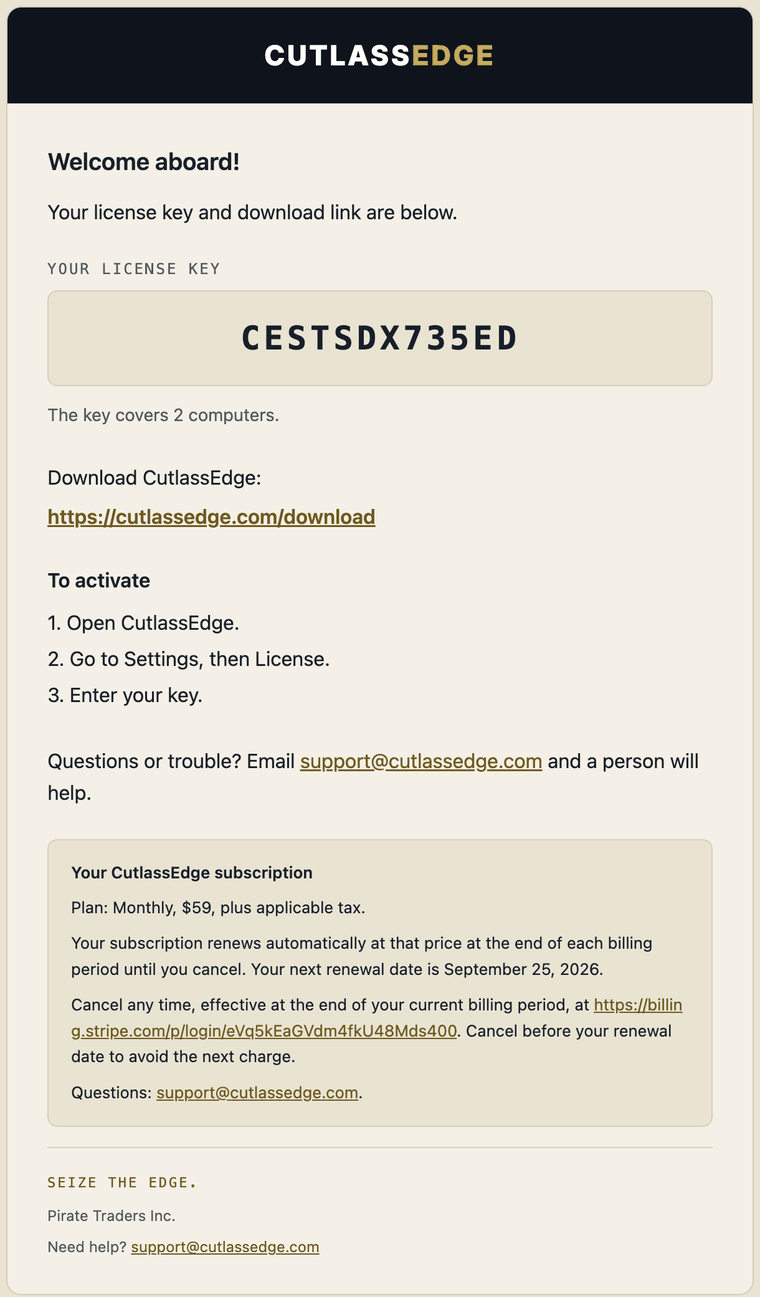
Step 1: Download the installer
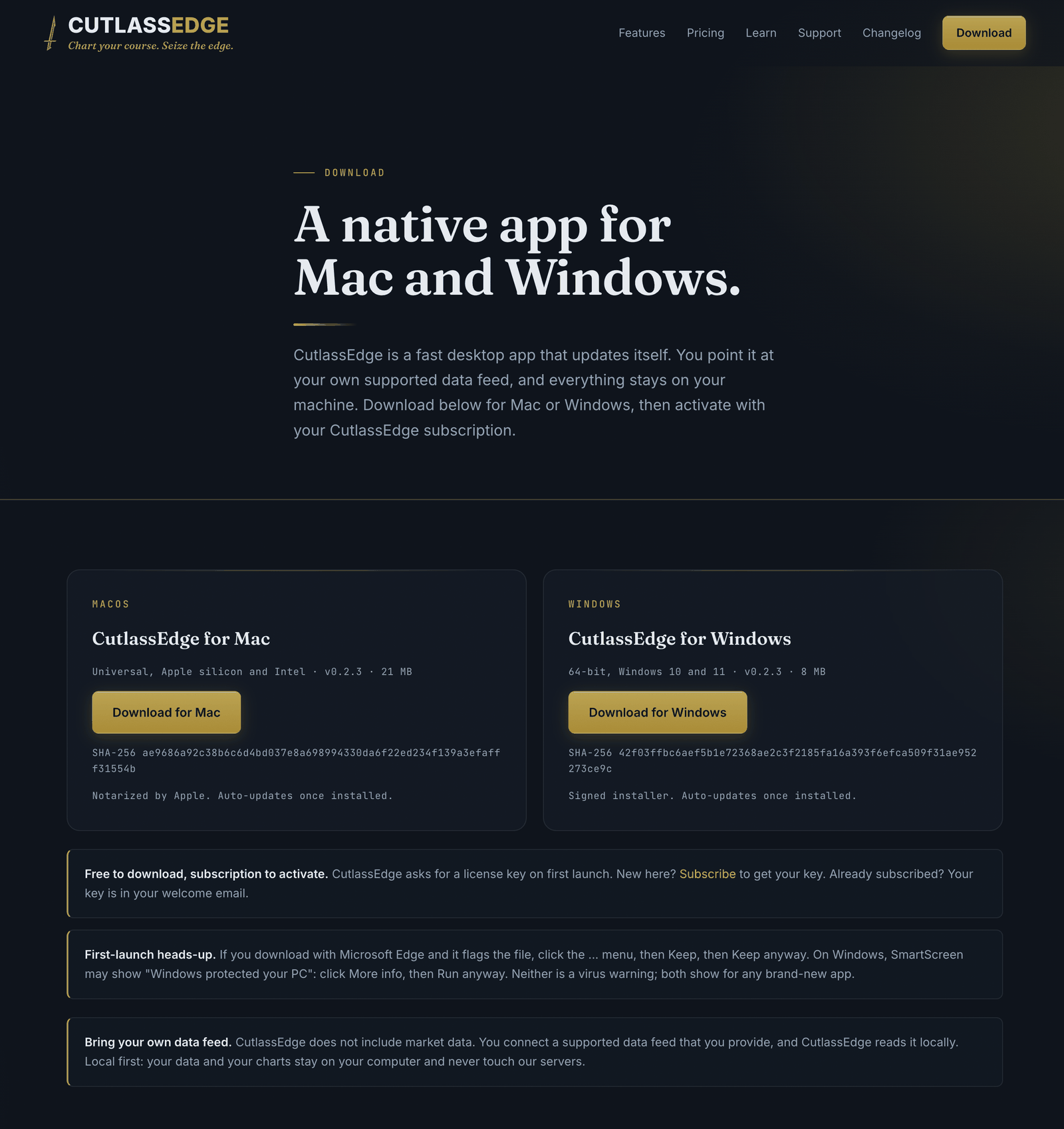
Open the download link in your welcome email, or go to cutlassedge.com/download. Pick your platform:
- Mac: a
.dmgfile. - Windows: a setup
.exefile.
This is the only manual download you will do. Once installed, CutlassEdge updates itself.
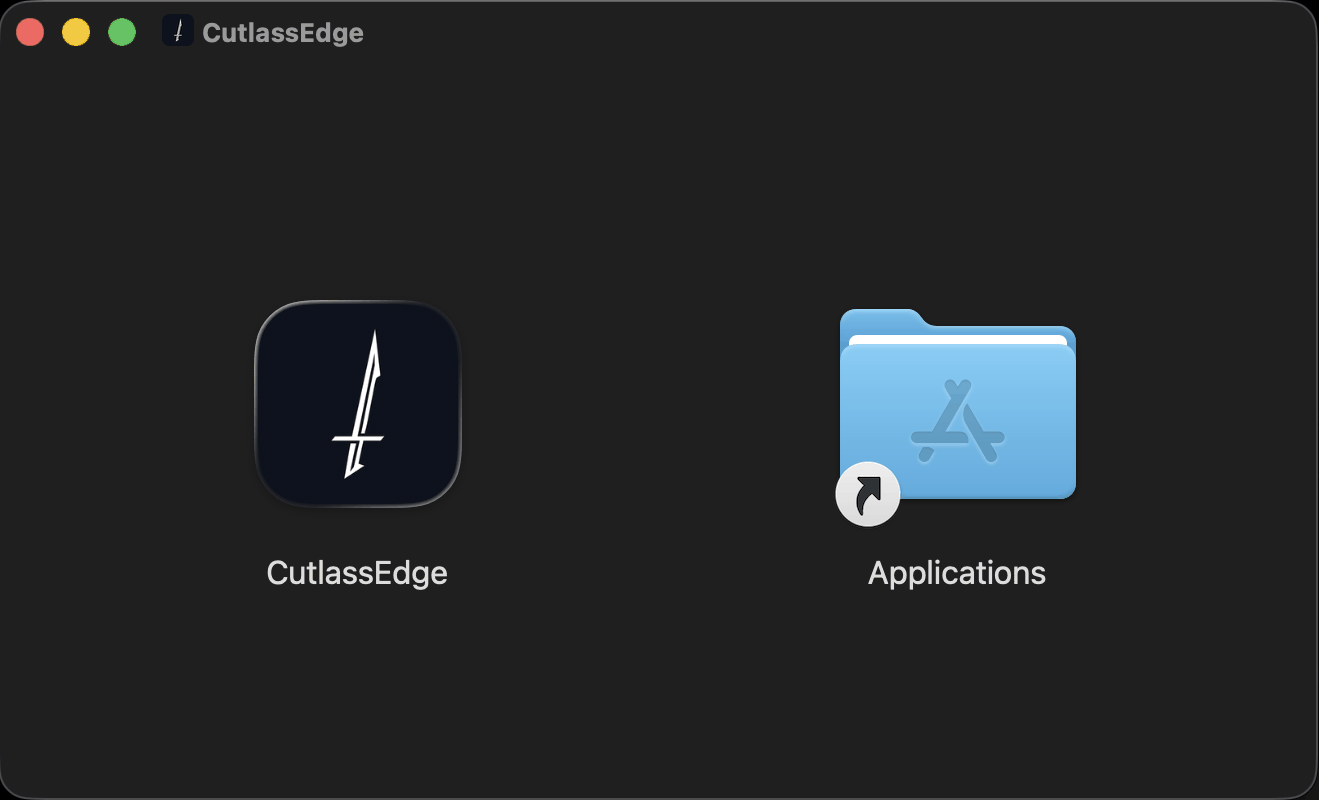
Step 2: Install
On a Mac
- Open the
.dmgfile you downloaded. - Drag the CutlassEdge icon onto the Applications folder.
- Open CutlassEdge from Applications. The first time, macOS may ask you to confirm you want to open an app downloaded from the internet. Click Open. CutlassEdge is signed and notarized by Apple, so you will not see an "unidentified developer" warning.
On Windows
- If you download with Microsoft Edge and it flags the file, click the ... menu next to the download, choose Keep, then Keep anyway. This is the same brand-new-app caution, not a real threat.
- Run the setup
.exeyou downloaded. - Windows may then show a blue "Windows protected your PC" box from SmartScreen. Click More info, then Run anyway. This is not a virus warning. It shows up for any brand-new app and goes away on its own as more people install.
- Follow the installer to finish.
If your antivirus (Norton, AVG, or similar) blocks the download or flags the site, that is a false positive on a brand-new release, not a real threat. Email support@cutlassedge.com and we will get you the installer another way while we clear it.
Step 3: Activate your license
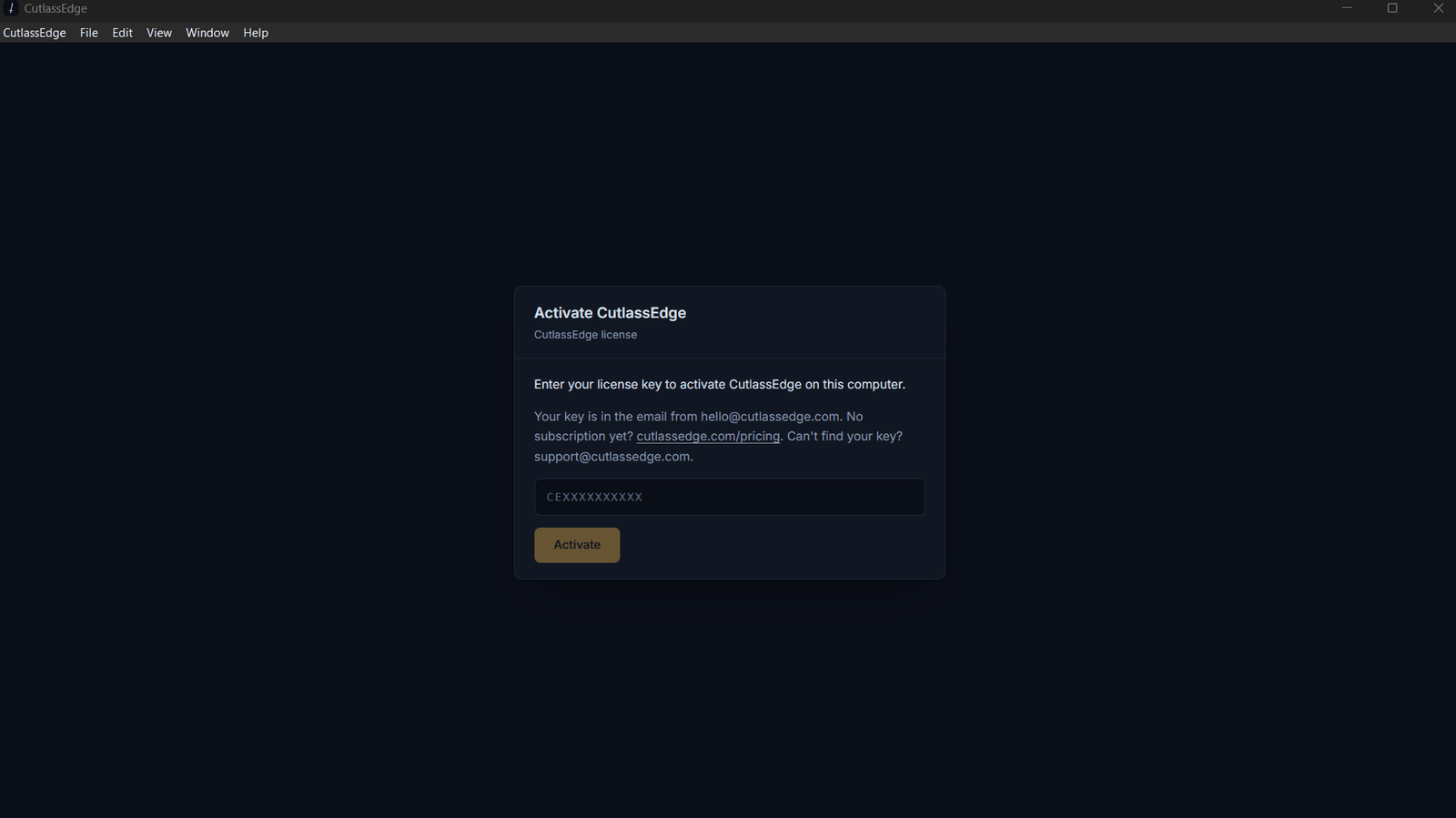
- Launch CutlassEdge. On first run it asks for your license key.
- Paste the code from your email and click Activate.
- Stay connected to the internet for this one step. Activation ties your license to this computer. Once it succeeds, CutlassEdge works offline, checking in quietly when it can.
Your license covers two computers, so you can run CutlassEdge on, for example, a desktop and a laptop. Moving to a new machine later is covered in Licensing and machines.
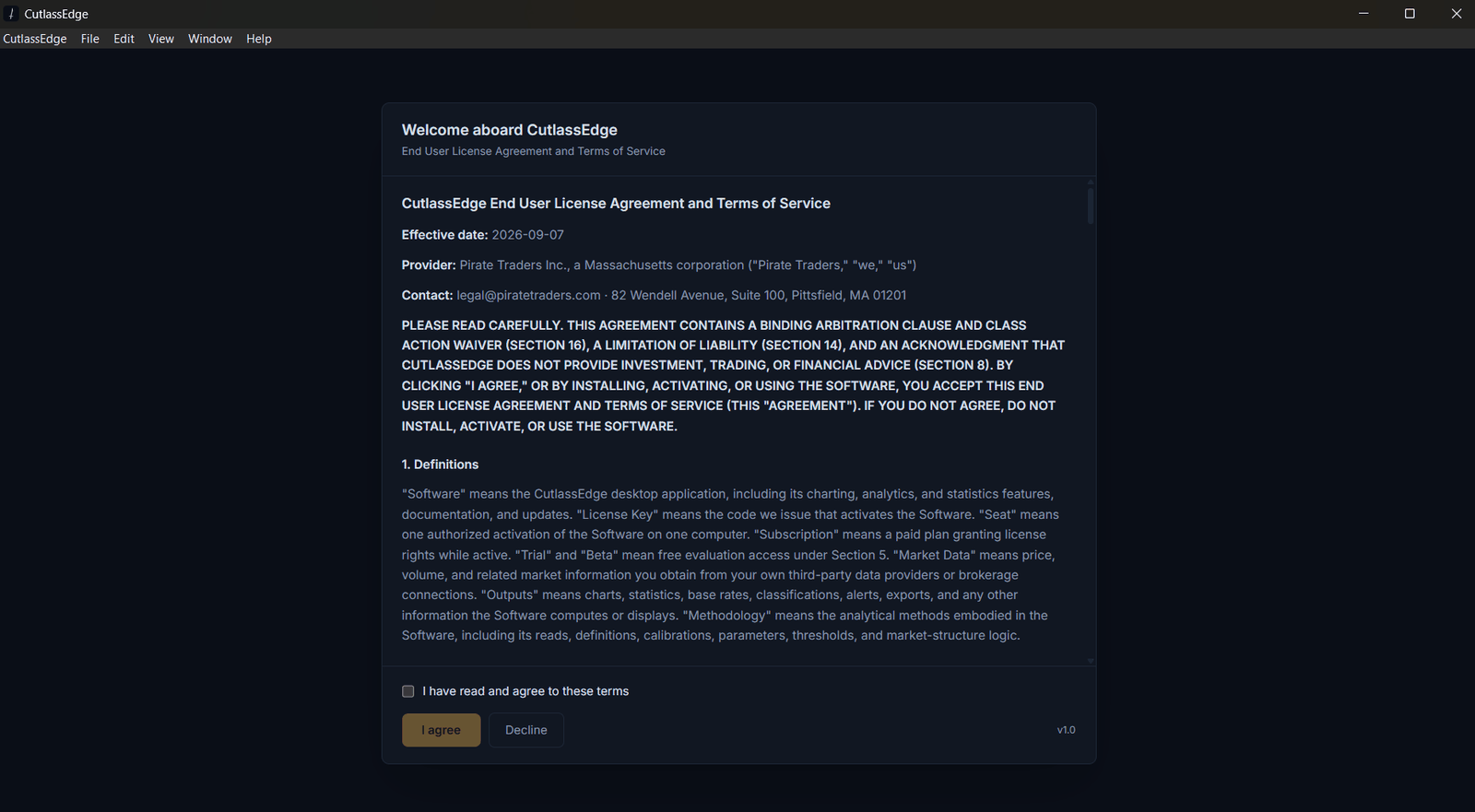
Step 4: Accept the terms
When prompted, read and accept the End User License Agreement to continue. It is the same agreement you saw at checkout, shown once inside the app.
Step 5: You are in
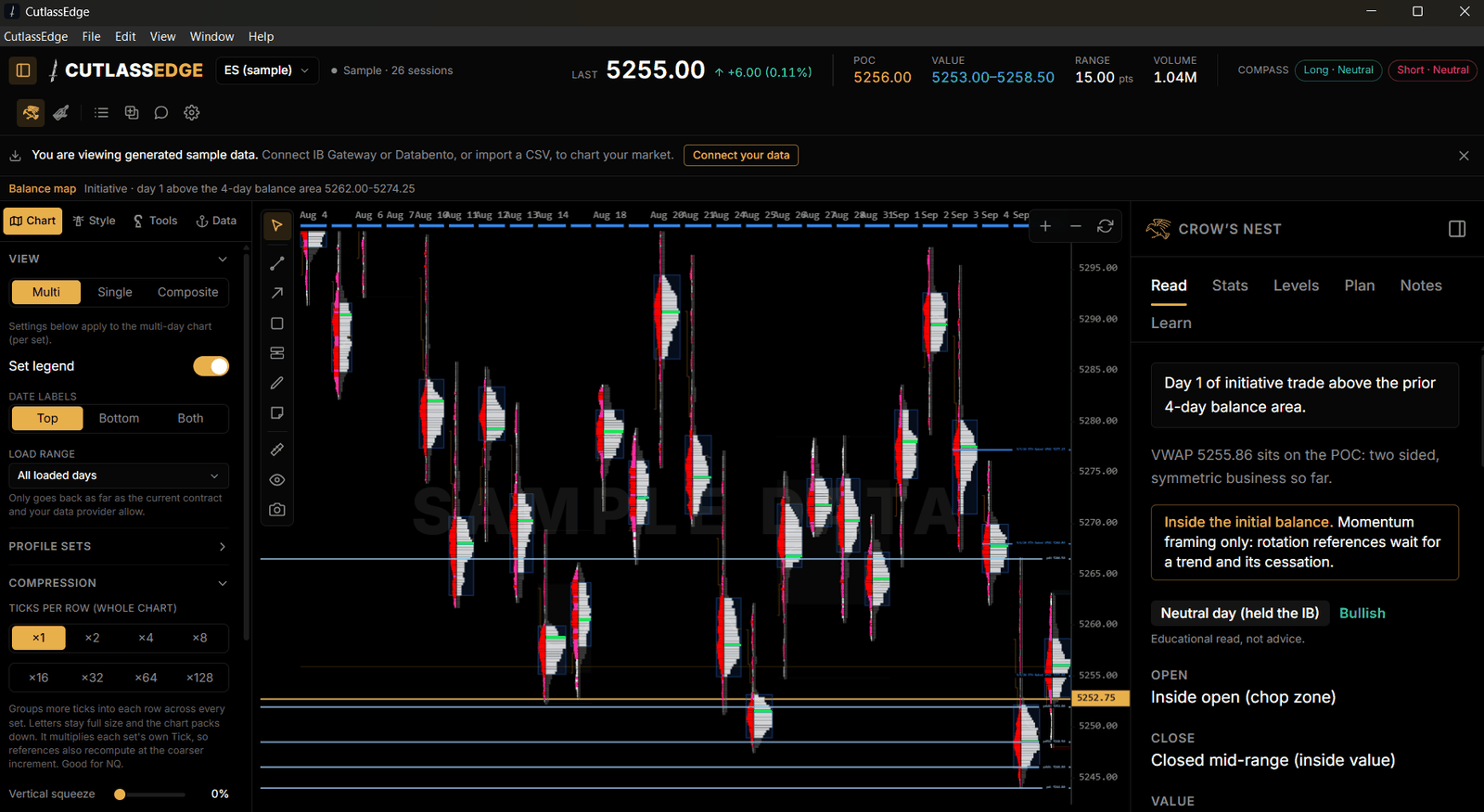
Next you see Connect your market data. To look around first, press Skip, look around with sample data. Nothing here is live yet, and that is on purpose. You can click around, open a profile, and get a feel for the layout with the market closed and no feed connected.
When you are ready for live charts, head to Connect a data feed. That guide walks through Interactive Brokers, Databento, and loading bars from a CSV.
If activation will not go through
- Check the key for typos. It is CE followed by 10 letters and numbers, one block, no dashes or spaces. Capitalization does not matter.
- "Already active on 2 computers" means both of your seats are in use. On a computer you are finished with, open Settings and click Deactivate this computer, then activate here.
- "Could not reach the license server" is an internet problem. Check your connection and try again.
- Still stuck? Email support@cutlassedge.com with the exact message you see, and we will sort it out.
Good to know
- CutlassEdge is analysis software. It reads market data and draws charts. It never connects to your broker to place orders.
- After the one-time activation you can work offline. CutlassEdge keeps working offline for up to 30 days between check-ins; go past 30 days offline and it locks until it can check in again, so connect to the internet at least once a month.
- CutlassEdge is a small download, about 9 MB on Windows and 24 MB on Mac, and stays under 100 MB installed. It grows from there as it caches chart history on your computer.