You do not need a feed to look around. On the first screen, press Skip, look around with sample data and CutlassEdge opens on built-in sample data. When you want live charts, connect one of the feeds below.
The feeds at a glance
- Interactive Brokers. Live futures charts, profiles, TPO, and volume, from your own IB account. This is the main path, and the one most people use.
- Databento. Every executed trade, for exact volume at price and the tick-based volume and footprint tools, from your own Databento account.
- CSV import. Load historical bars you exported from another source. No account needed, bars only.
- Sample data. Built in and offline, so you can try the app with no account at all.
You can connect Interactive Brokers and Databento at the same time. Each feed connects once, and every chart, grid, and window can read it. Each chart reads one feed, and you choose which.
A note on cost: the feed is separate from your CutlassEdge subscription, and you pay the data provider directly. That is why CutlassEdge is priced as software only, and it is also why your data stays yours. It comes from your own account, on your own machine.
Connections: where every feed lives
Every feed connects in one place, the Connections panel. Open it any of these ways:
- Click the feed name beside the ticker at the top of your chart (for example ES | IB), then Connections... at the bottom of the menu. When a feed is off, a Connect button sits right beside it and opens the same panel.
- In the rail down the left edge, open the Data tab and click Connections... at the top.
- Press Ctrl+K (Cmd+K on Mac) and type Connections.
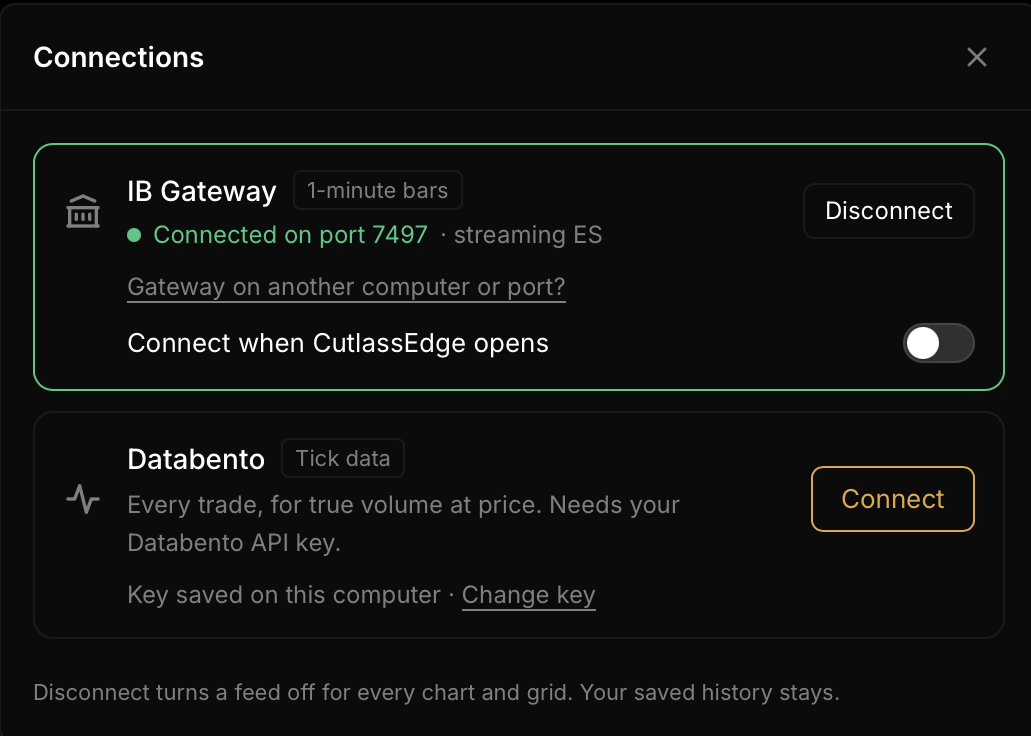
Each feed has its own row: IB Gateway and Databento. The row shows whether that feed is off, connecting, connected, or in trouble, and holds its Connect and Disconnect buttons. Disconnect turns that feed off for every chart and grid. Your saved history stays on your computer.
The first time a feed connects, its row asks Connect to IB Gateway automatically when CutlassEdge opens? (or Databento). Press Yes, and from then on your charts open right away on the history saved on this computer while the feed connects behind them. You can change it any time with the Connect when CutlassEdge opens switch in that row. Each feed has its own switch.
If no feed is set to connect automatically, CutlassEdge opens on a short screen with the same rows, each saying what it was last used for. Connect the ones you want and press Continue, or press Open my charts without connecting to look at your saved history with no feed.
Interactive Brokers
This is the main way to get live futures data into CutlassEdge. It uses a small, free program from Interactive Brokers called IB Gateway, which logs into your account and passes the data to CutlassEdge on your computer. Plan about fifteen minutes if you already have an Interactive Brokers account with the CME data subscription. A brand-new IB account takes longer: opening and funding it, and the data subscription going active, can take a few days, so start early.
What you need
- An Interactive Brokers account. A paper (practice) account works for charting, but only after you switch on one setting so it streams your real-time data (covered in Step 1). A live account needs no extra step.
- The CME market-data subscription called CME Real-Time (NP,L2) on that account. Without it, ES and NQ show a permissions message instead of a chart. Adding it is covered below.
- A minimum account balance. Interactive Brokers requires a minimum $500 equity balance to subscribe to and maintain market data. Keep at least enough to cover your monthly market-data fee on top of that $500 minimum.
- IB Gateway, free from Interactive Brokers.
Step 1: Install and log into IB Gateway
- On the Interactive Brokers website, download IB Gateway (choose the stable version) and install it.
- Open IB Gateway and log in. A paper login is fine, so you do not need to run a live one. If you are on paper, turn on real-time data for it first (the note above), or it charts delayed data.
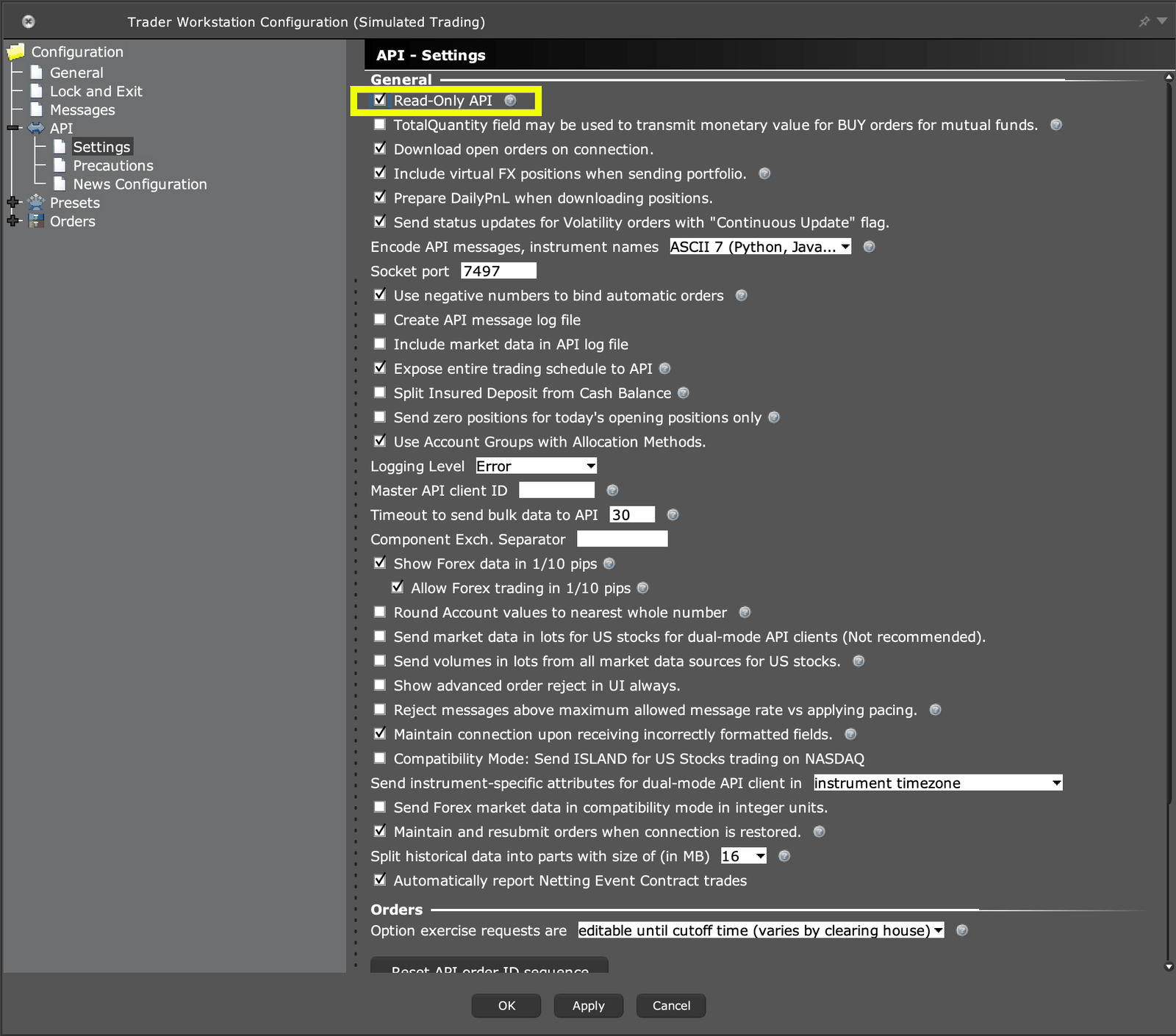
- Open the settings once: Configure, then Settings, then API, then Settings. Two things here are normal and not a problem:
- The window may call itself "Trader Workstation Configuration" in its title bar even though you opened it from IB Gateway. Interactive Brokers uses the same settings window for both programs.
- There is no on-off switch for the connection, because IB Gateway's connection is always on. The full Trader Workstation program has an "Enable ActiveX and Socket Clients" checkbox; IB Gateway does not need one, so it is not there.
- Tick Read-Only API if it is not already ticked. CutlassEdge never trades, so read-only costs you nothing and adds a lock at the Interactive Brokers end.
- If you see Allow connections from localhost only, leave it ticked. CutlassEdge runs on the same computer as IB Gateway.
- Leave the port number alone. Whatever it is, CutlassEdge finds it by itself.
- Add 127.0.0.1 to Trusted IPs, so IB Gateway accepts the connection from CutlassEdge on your machine.
- Click OK.
The first time CutlassEdge connects, IB Gateway may pop up "Accept incoming connection." Click Accept. Leave IB Gateway running and logged in whenever you want live charts.
IB Gateway restarts itself once a day. In Configure > Lock and Exit, choose Auto restart and set the time to outside your trading hours, so it never restarts mid-session. CutlassEdge notices the restart and connects again by itself.
Step 2: Connect CutlassEdge
The first time you open CutlassEdge, after your license key, you see Connect your market data.
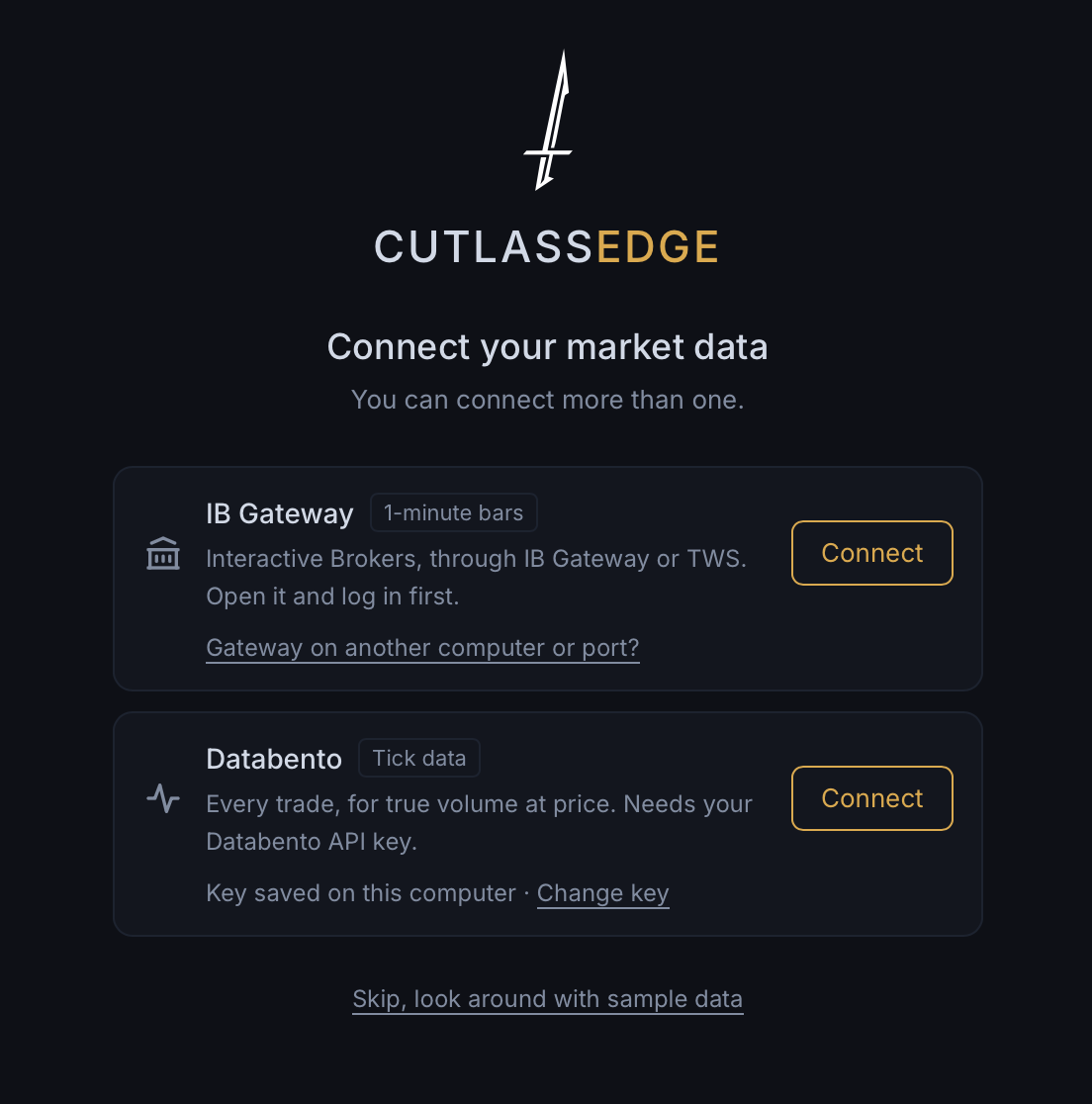
- On the IB Gateway row, press Connect. The row reads Connecting to IB Gateway..., then turns green: Connected on port 4001 (or whichever port your Gateway uses). CutlassEdge finds IB Gateway or TWS by itself, so you never type a port.
- The row asks Connect to IB Gateway automatically when CutlassEdge opens? Press Yes if you want live charts every time you open the app.
- Press Continue.
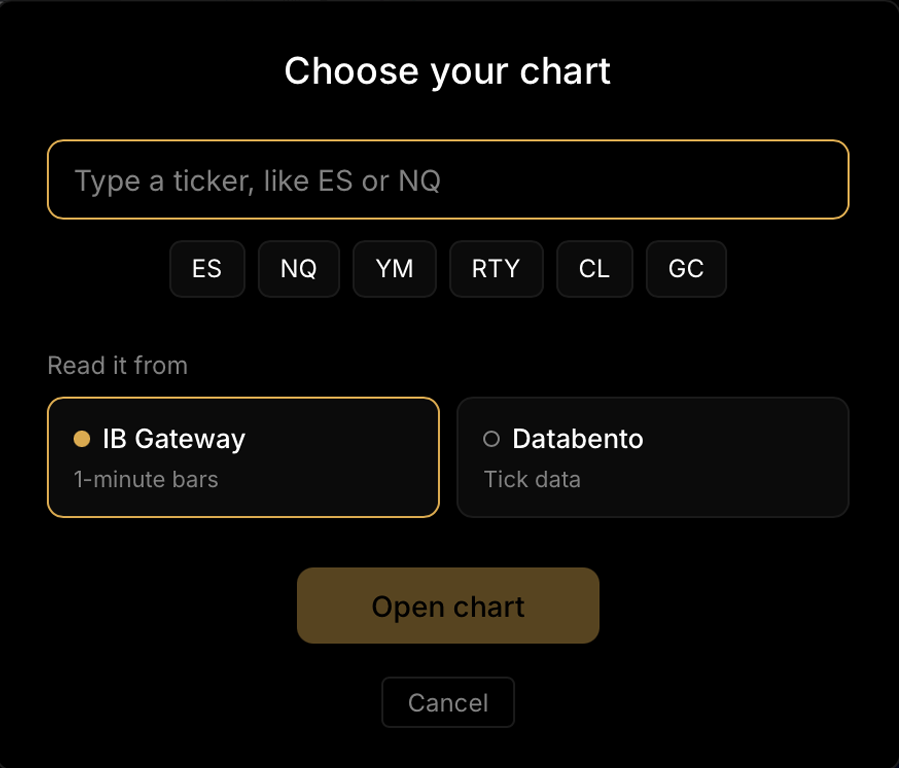
- On Choose your first chart, type a ticker in the box, or press ES, NQ, YM, RTY, CL, or GC, then Open chart. A short root like ES or CL opens the current contract for you. A dated code like ESZ6 works too.
- If this computer has no history for that ticker yet, you see Add history for ES? Pick 1 week, 1 month (already picked), 3 months, 6 months, or type your own number of days. Each choice says about how long it takes to load. 1 month is about 6 minutes, because Interactive Brokers sends history slowly. Press Load history, or Not now to start with the most recent days. Your chart opens as soon as the first days arrive, and the rest fills in behind it.
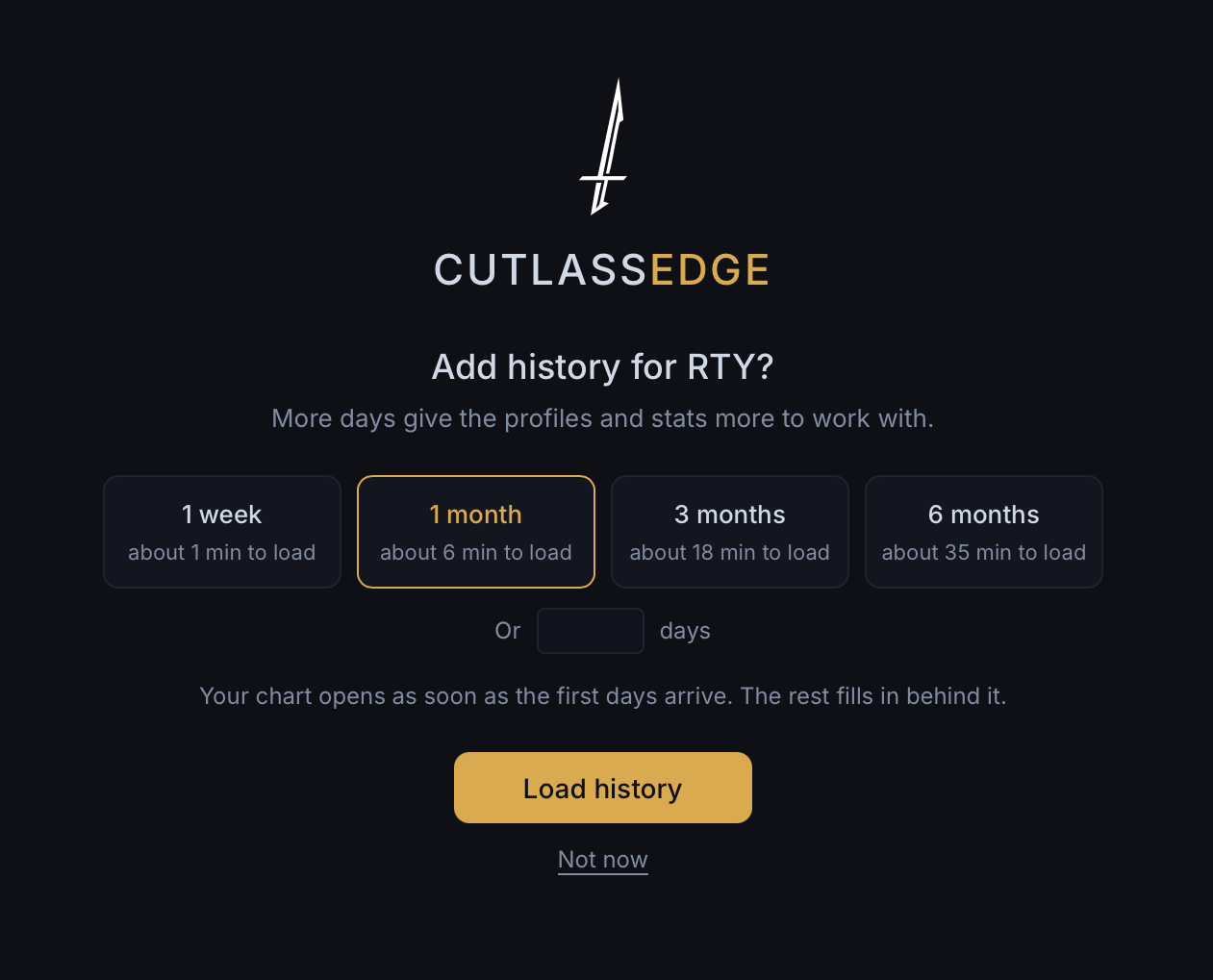
Already using CutlassEdge? Open Connections and press Connect on the IB Gateway row. Any chart reading IB goes live by itself. For a new chart, press the + beside your tabs. It opens Choose your chart, steps 4 and 5 above.
IB Gateway on another computer, or on a port you changed? On the IB Gateway row, click Gateway on another computer or port?, type the address (a port, or host:port), and press Use. Otherwise leave it alone.
Step 3: Confirm it is live
You are connected when all three of these are true:
- At the top of the chart, the ticker box shows your ticker with the feed beside it, ES | IB, and the dot beside IB is green. Hover over it and it reads IB live.
- The price at the top and along the right edge starts moving at market speed.
- In Connections, the IB Gateway row is green and reads Connected, with the tickers it is streaming.
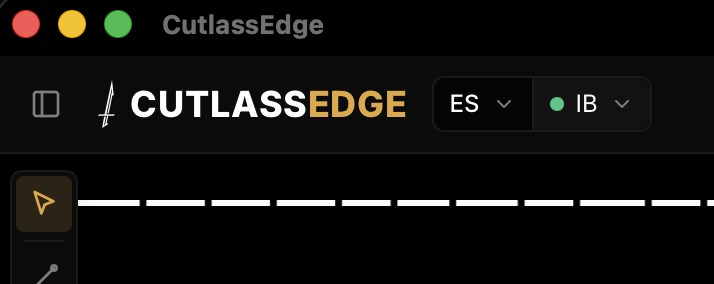
The TPO letters and the volume bars rebuild a few seconds behind the price. That delay is on purpose: the price ticks instantly, and the structure follows the official minute data a few seconds later.
Reading the feed dot
The dot beside the feed name, at the top of each chart, tells you how that chart's feed is doing. Hover over it for the words.
- Green, "IB live": connected and live.
- Gold, "IB idle": the link is healthy, but the market is quiet right now (overnight, a holiday, or the weekend). Nothing is wrong. Gold also shows while it is connecting. If it reads Delayed ~15m, IB is sending delayed data: your account has no real-time CME subscription, or your paper login is not sharing your live data yet (see Step 1).
- Red, "IB disconnected · retrying": it dropped and is reconnecting on its own. You do not need to click anything. If it stays red, click the feed and choose Open Connection Doctor.
- "IB off" with a Connect button: IB is not connected. Press Connect to open Connections.
If it does not connect
When IB Gateway cannot connect, CutlassEdge tells you why and keeps trying every 5 seconds, so it connects by itself as soon as the problem is fixed.
- In Connections, the IB Gateway row turns red and shows the Connection Doctor's answer: what is wrong, then numbered steps to fix it. Check again runs the check right now. Copy report copies a short report for support.
- On the chart, a notice has an Open Connection Doctor button, and the feed's menu at the top has the same button.
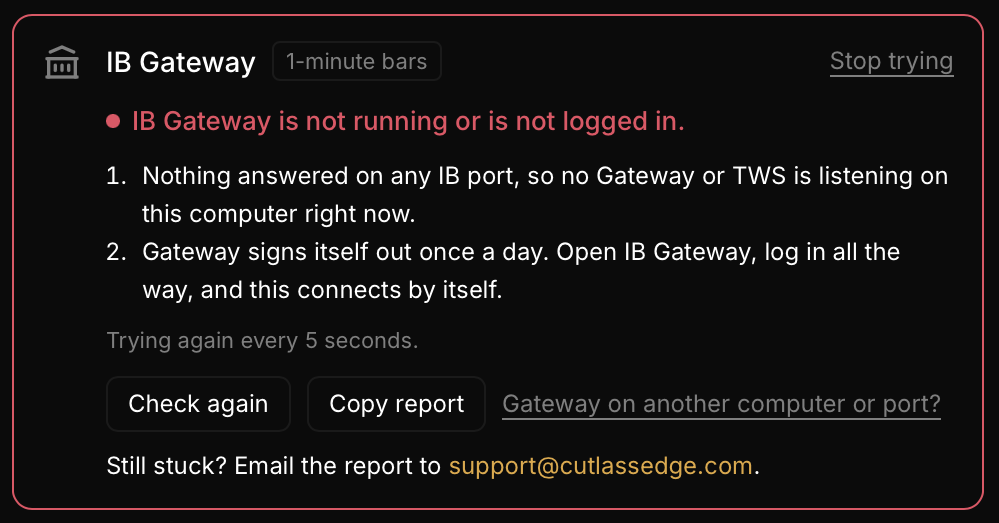
The answers you are most likely to see:
- "IB Gateway is not running or is not logged in": start IB Gateway and log in all the way. IB Gateway signs itself out once a day, so this is the most common one. CutlassEdge connects by itself, no click needed.
- "Gateway answered but refused the connection": add 127.0.0.1 to Trusted IPs in IB Gateway's API settings (Step 1).
- "Gateway answered but never finished the handshake": look at the IB Gateway window for an "Accept incoming connection" pop-up, and click Accept.
- "Your IB login has no live data subscription for this market" (IB error 354): in Interactive Brokers account management (Account Settings, then Market Data Subscriptions), add CME Real-Time (NP,L2) for ES and NQ, then log out of IB Gateway and back in. Other markets (oil, gold, bonds) need their own package. This is an Interactive Brokers subscription, separate from CutlassEdge.
- "IB does not recognize this contract" (IB error 200): the exact contract you typed does not exist. Type just the root, like ES, NQ, or CL, and CutlassEdge picks the current contract for you.
- "Something on this PC is blocking the local connection": antivirus, a firewall, or a VPN is filtering connections on your computer. Allow CutlassEdge and IB Gateway through it.
Still stuck? Press Copy report and email it to support@cutlassedge.com, and we will take it from there.
Do not run the same login twice
Do not log the same Interactive Brokers user into a second IB Gateway or TWS somewhere else. Interactive Brokers allows only one login and will disconnect the first. This is their rule, not ours.
One session at a time
Interactive Brokers lets only one of your logins stream your market data at once. If you share data to your paper account, your live and paper logins cannot both be running at the same time, and the same goes for the IBKR mobile app or a second copy of Trader Workstation. If your prices freeze and then jump to catch up, this is almost always why. Close the other session (the phone app is the easy one to forget), and leave only the one CutlassEdge uses.
Databento
Databento is the second live feed. Where Interactive Brokers gives you bar data, Databento gives you exact, executed volume-at-price straight from the tape. That is what powers the tick-based volume and footprint tools. On bar data, the volume at each price is an estimate: each minute's total volume is spread across the prices that minute touched, though the prices, ranges, and TPO letters are still exact. On tick data, the volume at each price is the real, executed number. There is more on this in TPO and volume profile.
Databento is a paid subscription that you buy from Databento directly; see their pricing. Your key and your data stay on your machine, the same local-first way your Interactive Brokers data does. You can run Databento alongside Interactive Brokers: connect both, and choose the feed for each chart.
Databento's CME futures come from a single dataset called CME Globex MDP 3.0. It covers every futures market in CutlassEdge's symbol search: ES, NQ, RTY, GC, ZB, CL, and more.
Step 1: Get a Databento account and key
Create a Databento account, then open your API key in your Databento account, under API keys.
Step 2: Connect Databento
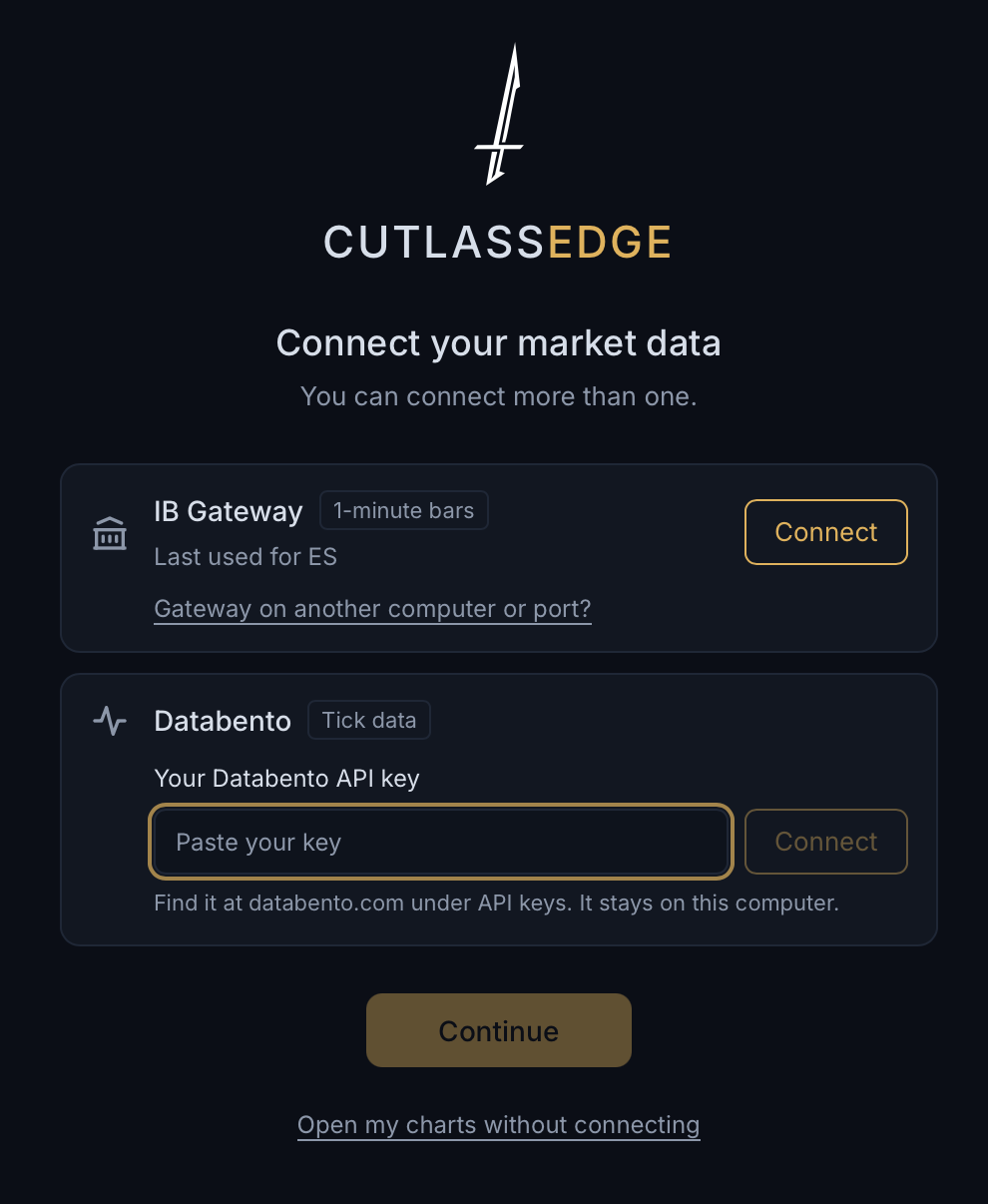
- Open Connections. The first time you open CutlassEdge, the Connect your market data screen has the same row.
- On the Databento row, paste your key into Your Databento API key and press Connect. The row reads Checking your key with Databento..., then turns green. Your key is saved only on this computer and is sent only to Databento. The row shows Key saved on this computer, with Change key if you ever need a new one.
- Answer Connect to Databento automatically when CutlassEdge opens?
Step 3: Open a chart on Databento, with history
Tick profiles are built from executed trades, so a chart on Databento wants some history.
- Press the + beside your tabs (or Continue on the first screen). On Choose your chart, type or pick your ticker. With both feeds connected, Read it from lets you pick Databento.
- If this computer has no tick history for that ticker, you see Add history for ES? Each choice shows its price, from a free check with Databento. Nothing is spent until you press Load history. On a Databento subscription, included history shows $0.00.
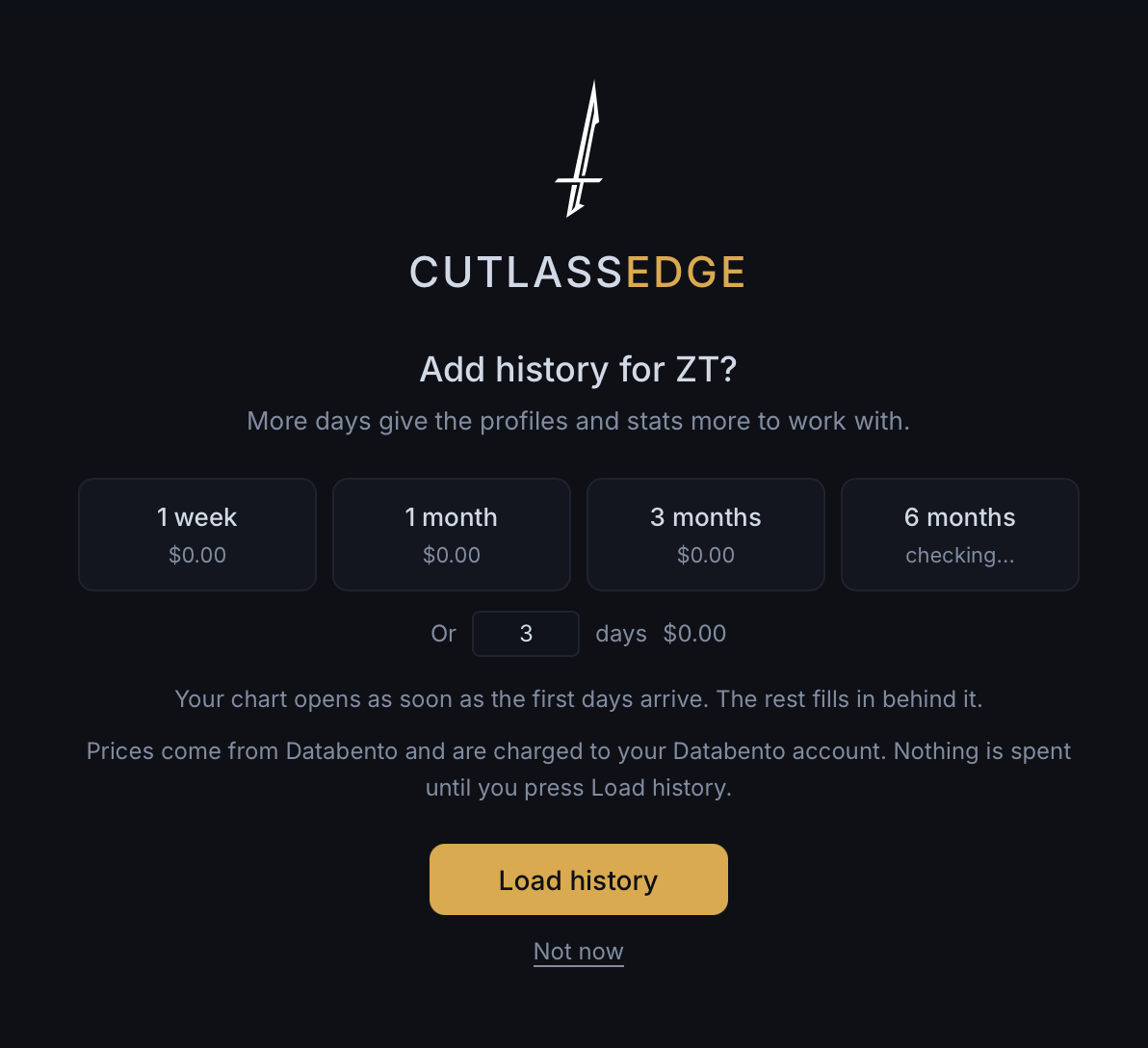
- Press Load history. Your chart opens as soon as today's trades arrive, and the days you picked download behind it, with a line like ES history: 12 of 30 days, about 4 min left and a Stop button. Days you already have are never downloaded or billed again.
Want more days later? Open the Data tab and find Databento (tick data). Set the days (60 is a good start), press Check cost (free, nothing downloads), then Start fill. It downloads history for the ticker on your chart.
Step 4: Confirm it is live
The feed beside the ticker reads Databento with a green dot. Hover over it: Databento live when it is streaming, Databento idle when the market is quiet, and Databento reconnecting if it drops and is recovering on its own.
On Databento, each ticker runs live in one chart at a time. A second chart on the same ticker asks you to pick a different one.
Switching a chart to another feed
Each chart reads one feed. To move a chart from IB to Databento, or back:
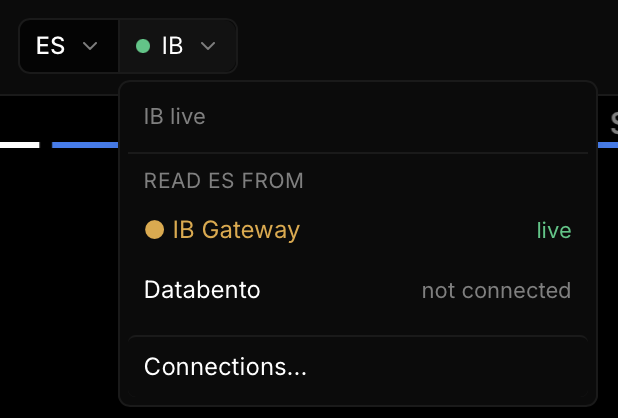
- Click the feed name beside the ticker at the top of the chart.
- Under Read ES from, pick the other feed. A feed that is not connected yet opens Connections instead.
You do not need to disconnect anything, and your other charts keep their own feed. Nothing is deleted by switching: your bar history and your tick history both stay on your machine. Your lines, zones, alerts, notes, and drawings belong to the ticker, so they show on either feed.
A grid reads one feed for all its cells: click the feed button in the grid's rail, Read this grid from.
CSV import
If you already have historical bars exported from another source, you can load them into CutlassEdge with no account at all. This brings in bars only: no live updates, and no per-price volume detail. Open the Data tab and click Import CSV…. Under Import as, choose the instrument, and under Timestamps are in, choose the time zone your file uses.
Your CSV needs a timestamp column (a date, or a full date and time, in ISO format like 2026-09-04T14:30:00, or a Unix epoch), then open, high, low, close, and, optionally, volume.
Sample data
CutlassEdge ships with built-in sample data so you can explore offline, with no account and no feed connected. On the first screen, press Skip, look around with sample data. When you are ready, press Connect beside IB off at the top of the chart to open Connections.
Good to know
- The feed you connect is separate from CutlassEdge and separate from your subscription. You pay the data provider directly, and the data comes from your own account.
- You can connect Interactive Brokers and Databento at the same time. Each chart and each grid reads one of them.
- Session times follow exchange time (Chicago and New York), whatever your local clock says.
- Your chart history is cached on your computer, so opens are fast and your history builds up every day you run the app.